Excel worksheets can accumulate over time, leading to a cluttered workbook. Deleting unnecessary worksheets can help you stay organized and focused. Fortunately, removing a worksheet in Excel is a simple process that can be done in just a few clicks.
Before deleting a worksheet, make sure to save any important data on that sheet or move it to a different location within your workbook. Once you are ready to remove a worksheet, follow the steps below:
 How To Delete An Excel Worksheet
Step 1: Select the Worksheet
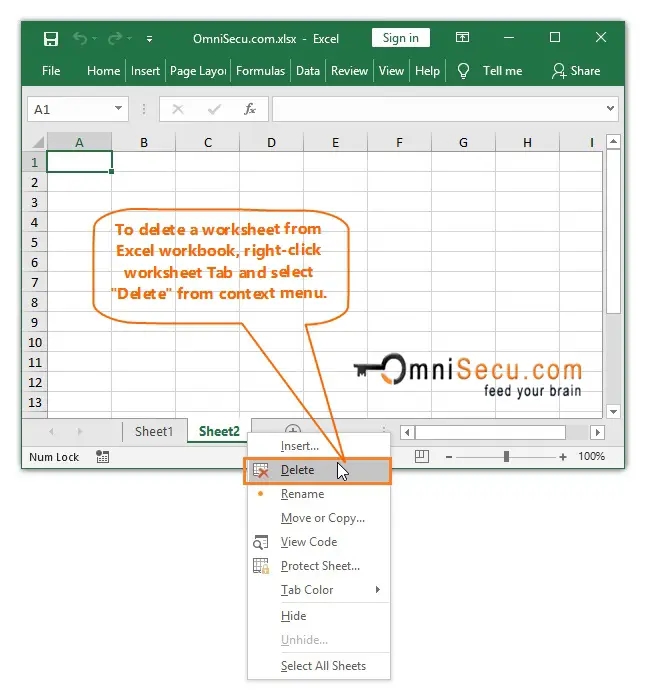
Click on the worksheet tab at the bottom of the Excel window to select the worksheet you want to delete. The selected worksheet will be highlighted in white.
Step 2: Right-click on the Worksheet Tab
Once you have selected the worksheet, right-click on the worksheet tab. A drop-down menu will appear with various options.
Step 3: Choose “Delete”
In the drop-down menu, select the option that says “Delete.” A confirmation dialog box will appear asking if you are sure you want to delete the worksheet. Click “Delete” to proceed with the deletion.
Step 4: Confirm Deletion
After clicking “Delete,” the selected worksheet will be permanently removed from your Excel workbook. Any data on that worksheet will be lost, so make sure you have saved or moved any important information beforehand.
By following these simple steps, you can easily delete unnecessary worksheets in Excel and keep your workbooks organized and clutter-free.
In conclusion, deleting an Excel worksheet is a straightforward process that can help you maintain a clean and organized workbook. By selecting the worksheet, right-clicking on the tab, choosing “Delete,” and confirming the deletion, you can quickly remove unwanted worksheets from your Excel files. Remember to always save important data before deleting any worksheets to avoid losing valuable information.